
How to Monitor WooCommerce Orders on Black Friday
Monitor WooCommerce orders on Black Friday without living in wp-admin: track pending payments, the processing backlog and stock with a simple routine.

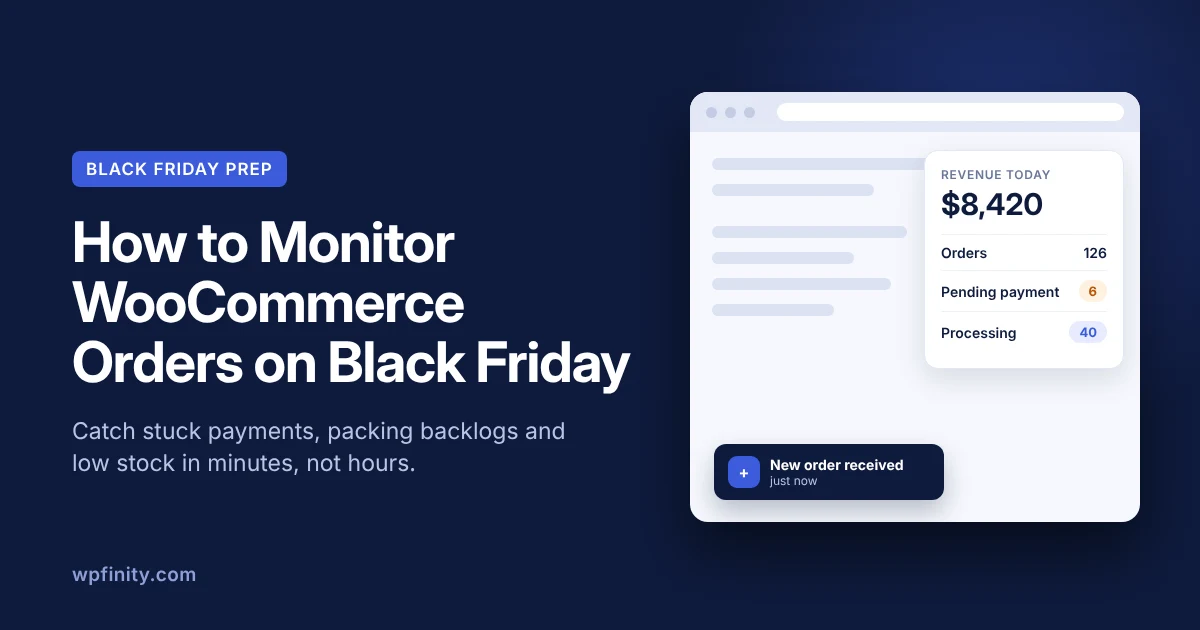
To monitor WooCommerce orders on Black Friday, watch three numbers all day: new orders, orders stuck in Pending payment, and the Processing backlog waiting to ship. Set up alerts before the sale, check those numbers on a fixed rhythm, and keep them visible outside wp-admin so you spot problems in minutes, not hours.
Black Friday 2025 set a record: US shoppers spent $11.8 billion online, up 9.1% year over year, according to Adobe Analytics. On Cyber Monday, peak hours hit $16 million in spending every minute. For a small WooCommerce store, that wave arrives as a burst of orders while you are adjusting ads, answering emails and replying to customers. This guide shows how to monitor WooCommerce orders through the sale without refreshing the Orders screen every five minutes.
Short on time? Get WooPeek free and keep today’s orders, revenue and pending payments in view on every browser tab.
What should you monitor in WooCommerce on Black Friday?
Monitor four signals: new orders, Pending payment orders, the Processing backlog and stock on your bestsellers. Each one warns you about a different kind of sale-day problem.
| Signal | What it means | What to do when it moves |
|---|---|---|
| New orders | Customers are checking out | If orders stop during peak traffic, place a test order right away |
| Pending payment | Order received, but no payment made yet | A sudden jump often points to a payment gateway or checkout issue |
| Processing | Paid, stock reduced, waiting to be shipped | A growing pile means packing has fallen behind |
| Low stock | A bestseller is close to selling out | Pause ads for that product or update the listing |
The definitions above come from the WooCommerce order statuses documentation. If you accept bank transfers, also watch On hold: WooCommerce uses it for orders where stock is reduced but you still need to confirm the payment yourself.
Why do missed orders cost so much during a sale?
During a sale, a problem you notice three hours late has already affected hundreds of customers instead of a handful. The order volume that makes Black Friday worth it also multiplies every delay.
Picture a typical Black Friday morning. Your sale email goes out at 8 a.m., then you spend two hours on ad budgets and customer questions. At 10:15 you finally open wp-admin and find:
- 40 orders sitting in Processing, so packing is already a morning behind
- 6 orders stuck in Pending payment since 8:30, after a short gateway hiccup
- 3 emails from customers asking whether their order went through
- Your top product down to its last few units, with ads still running
Nothing was broken for long. Nobody was watching, so a 20-minute glitch became a two-hour backlog, extra support work and a likely stockout.
How do you monitor WooCommerce orders without living in wp-admin?
The best setup combines what WooCommerce already gives you with one view that stays visible while you work. Each method covers a different gap.
| Method | Good for | Gap on sale day |
|---|---|---|
| Orders screen in wp-admin | Full order detail and fulfilment | You have to keep reopening and refreshing it |
| New order emails | A record of every order | The inbox floods; no pending or backlog count |
| WooCommerce mobile app | Sales notifications and key metrics on your phone | Easy to miss when you are working at a desk |
| Browser sidebar (WooPeek) | Today’s numbers at a glance on any tab | Read-only; you still fulfil orders in wp-admin |
Keep wp-admin for the work itself and emails as your record. Then add one always-visible view so you notice changes without going to look for them.
What is a good Black Friday order monitoring routine?
A good routine sets clear check-in points before, during and after the sale, so monitoring takes seconds each time. Use this timeline as a starting point and adjust the times to your own launch.
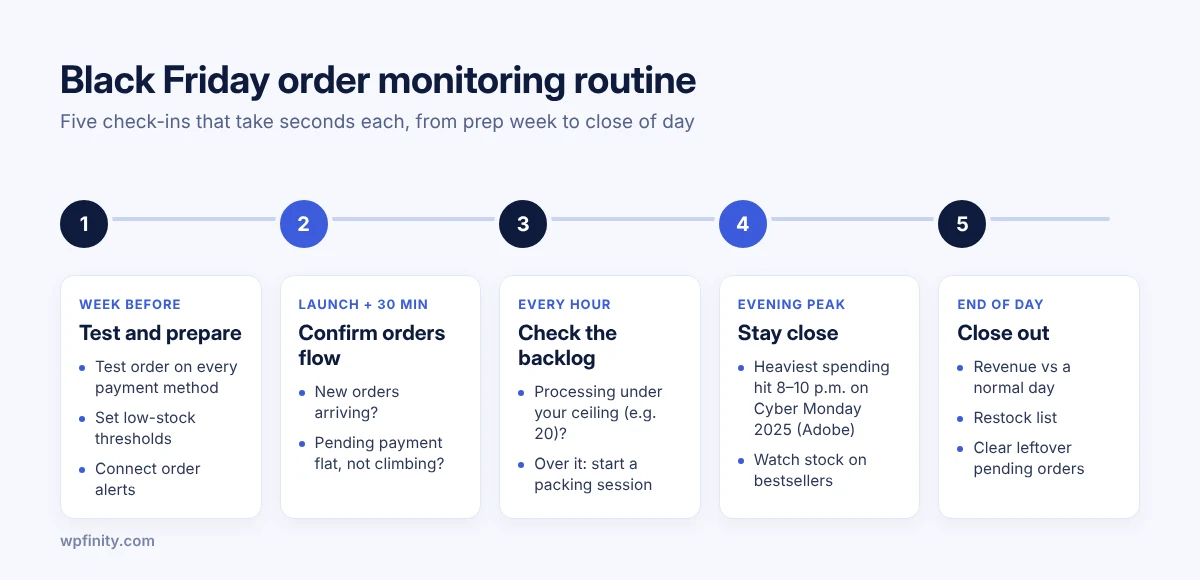
- The week before: place a test order with every payment method, set low-stock thresholds on your bestsellers and connect your monitoring tools.
- Launch hour: 15 to 30 minutes after your sale email goes out, check that new orders are arriving and Pending payment is not climbing.
- Every hour: check the Processing count and set a ceiling, for example 20 orders, that triggers a packing session.
- Evening peak: stay close during the evening. On Cyber Monday 2025, Adobe recorded the heaviest spending between 8 and 10 p.m.
- End of day: compare today’s revenue with a normal day, list what needs restocking and clear any orders still pending.
How does WooPeek keep Black Friday orders in view?
WooPeek is a Chrome extension from Wpfinity that shows today’s revenue, order count, pending and processing alerts and recent orders in a small floating sidebar on every tab. It reads your store through the official WooCommerce REST API with a read-only key, so nothing gets installed on your store.
Setup takes about two minutes:
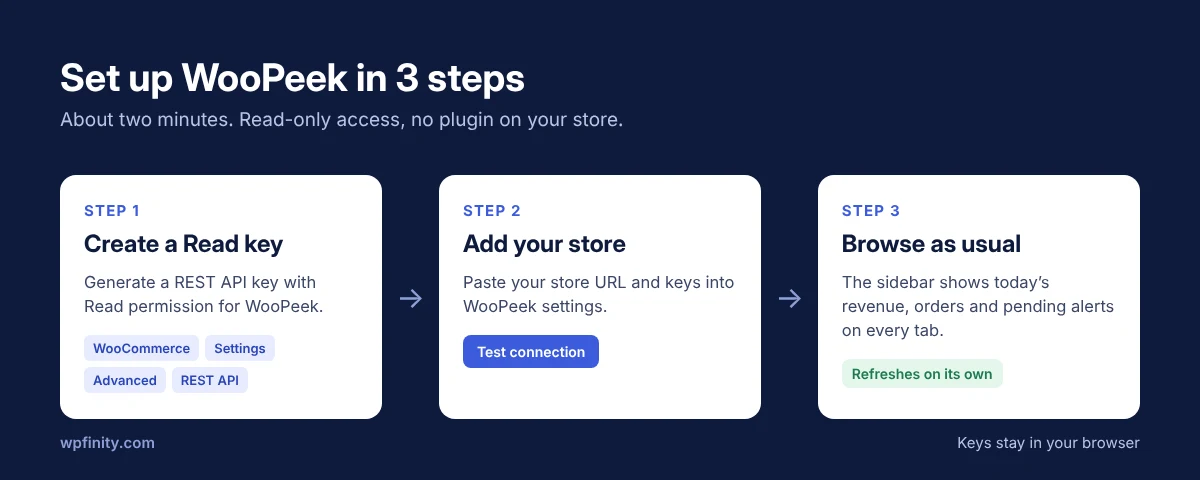
- In WooCommerce → Settings → Advanced → REST API, create a key with Read permission for WooPeek.
- Paste your store URL and keys into WooPeek settings, then click “Test connection”.
- Browse as usual. The sidebar appears on every tab and refreshes on its own.
On sale day, WooPeek Free gives you:
- Today’s revenue and order count, front and center
- Pending payment and processing alerts, so stuck orders and backlogs stand out
- Your 5 most recent orders with a color-coded “time ago”
- A toast with an optional sound when a new order arrives
- A refresh every 60 seconds, plus a manual refresh any time
You can drag the sidebar anywhere, collapse it to a slim bar, or hide it on sites where you don’t need it. If it is hidden, the toolbar popup still shows revenue, orders and pending payments for your active store.
If you sell a lot of SKUs or run more than one shop, WooPeek Pro adds low stock watch, top products today, a 30-day revenue sparkline, desktop notifications when pending payments go up, a 30-second refresh and up to 3 stores. WooPeek Agency covers unlimited stores with a 15-second refresh.
Watch Black Friday orders from any tab
WooPeek Free shows today’s revenue, pending payments and new orders in a sidebar on every tab. No account needed and no plugin on your store.
Is it safe to connect a monitoring tool to your store?
Yes, if the tool only needs read access and keeps your keys under your control. WooPeek is built to ask for the minimum.
- Read-only key: WooCommerce’s REST API documentation explains that Read permission only lets an app retrieve data from your store. WooPeek only reads orders and products.
- No plugin on your store: WooPeek uses the REST API built into WooCommerce, so you add nothing to your site during your busiest week.
- Keys stay in your browser: API keys are stored locally in Chrome and sent only to your own store, never to Wpfinity.
- No tracking: WooPeek doesn’t collect personal data. Only the email you verify a paid plan with is checked by Wpfinity’s license server.
- Low-risk pricing: Free is $0 forever. WooPeek Pro is $39 a year or $99 once, and paid plans come with a 14-day, 100% money-back guarantee under Wpfinity’s refund policy.
WooPeek is a Chrome extension and needs Chrome 110 or newer. Browse Wpfinity’s other WordPress and WooCommerce products if you need tools inside wp-admin itself.
WooCommerce order monitoring FAQ
How do I get notified of new WooCommerce orders?
WooCommerce can email the store admin about each new order. For an on-screen alert while you work, WooPeek shows a toast with an optional sound on any Chrome tab when a new order arrives.
Why are my WooCommerce orders stuck in Pending payment?
Pending payment means WooCommerce received the order but no payment was made. The customer may have left checkout, or the payment gateway may have had a problem. A sudden jump during a sale is worth checking straight away.
What is the difference between Processing and On hold?
Processing means payment was received and the order is waiting to ship. On hold means stock is reduced but you still need to confirm payment, which is common with bank transfers.
Do I need to install a plugin to use WooPeek?
No. WooPeek connects through the WooCommerce REST API that is built into every store. You only create a pair of read-only API keys.
Can I monitor more than one WooCommerce store?
Yes. WooPeek Free covers 1 store, WooPeek Pro covers up to 3 with a one-click store switcher, and WooPeek Agency covers unlimited stores.
Is WooPeek free?
Yes. WooPeek Free costs $0 forever and needs no account. Pro and Agency add more stores, faster refresh and stock insights.
Get your store ready before Black Friday
Install WooPeek free today, connect your store with a read-only key and run it on a normal day, so sale day already feels familiar.

 WooCommerce Tips
November 14, 2026
How to Manage Multiple WooCommerce Stores Without Juggling Logins
Manage multiple WooCommerce stores without juggling logins: a daily routine for orders, pending payments and stock, plus one view for…
Read more
 Cleaning Business
November 12, 2026
How to Bid Commercial Cleaning Jobs: A Step-by-Step Guide
Learn how to bid commercial cleaning jobs step by step: walkthrough, production rates, labor, overhead and profit, plus a worked…
Read more
 Cleaning Business
November 10, 2026
How to Price Carpet Cleaning: Per Room vs Per Square Foot
Learn how to price carpet cleaning per room or per square foot, with 2026 US price benchmarks, job minimums and…
Read more
Get new articles & release notes in your inbox
Sign up for updates on our upcoming releases. No spam — unsubscribe anytime.

One Response