How to Manage Multiple WooCommerce Stores Without Juggling Logins
Manage multiple WooCommerce stores without juggling logins: a daily routine for orders, pending payments and stock, plus one view for all stores.

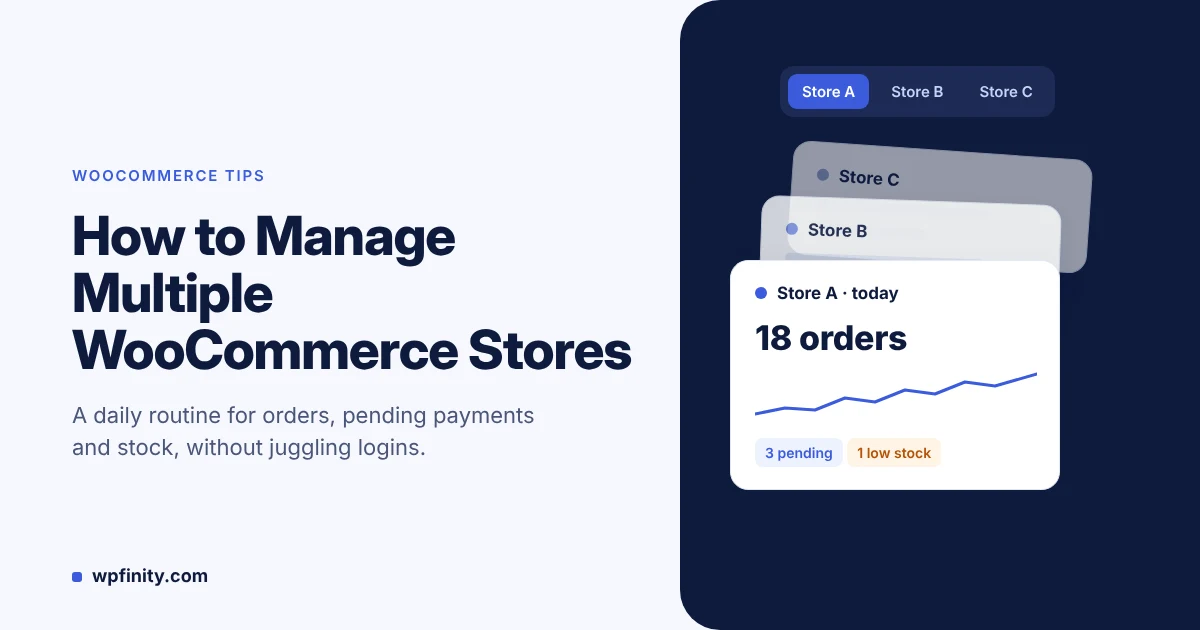
TL;DR: To manage multiple WooCommerce stores without burning hours, split the work you do weekly (updates, products, settings) from the numbers you check all day (new orders, pending payments, processing backlog, revenue, low stock). Keep each store’s wp-admin for real work, and put the all-day numbers in one read-only view. WooPeek Pro does this from a Chrome sidebar, with a one-click switcher for up to 3 stores.
Opening a second WooCommerce store rarely doubles the work you planned for. It doubles the checking: two logins, two Orders screens, two sets of “did anything come in?” tabs. This guide gives you a daily routine that works for 2–3 stores and shows how to cut it to one glance. If you want the numbers now, get WooPeek free and connect your first store in about two minutes.
Why is it hard to manage multiple WooCommerce stores?
Each WooCommerce store keeps its own admin, orders and reports, so nothing shows all your stores at once by default. That is true whether you run WordPress Multisite or separate installs: WooCommerce’s own guide notes that each store keeps its own products, pricing, shipping and payments.
In practice, that means:
- Separate logins and sessions that expire at the worst moment
- An Orders screen to reload in every store
- Pending payments that sit unnoticed in the store you didn’t check
- Stock running low in one store while you watch the other
A typical Monday: you check Store A at 10am and all is fine. Store B, “the small one”, has 14 orders in processing since Saturday and a pending payment from 9:12 that the customer has already given up on.
What does checking each store by hand cost you?
The real cost is not the login. It is the gap between checks. Say you check each of two stores six times a day, and each check (log in, open Orders, scan) takes two minutes. That is 24 minutes a day, roughly two hours a week, before you pack a single order.
The gaps cost more than the time:
- Late fulfillment: a processing backlog grows in the store you looked at last.
- Lost pending payments: a failed checkout you notice three hours later is often a lost sale.
- Surprise stockouts: a best seller runs out in one store while the other has plenty of attention.
- Missed spikes: a campaign takes off and you find out at the end of the day.
If a sales event is coming up, our guide to monitoring WooCommerce orders on Black Friday covers the day itself.
What should you check daily vs weekly across stores?
Split monitoring (numbers you glance at) from management (work you do inside each admin). Monitoring belongs in one view across stores; management stays per store.
| Task | How often | Where |
|---|---|---|
| New orders and order count | All day, on alert | One cross-store view |
| Pending payments | Several times a day | One cross-store view |
| Processing backlog | Morning and afternoon | Cross-store view, then the store’s Orders screen |
| Revenue today | Morning and end of day | One cross-store view |
| Low stock | Daily | Cross-store view, restock in the store’s admin |
| Plugin updates and backups | Weekly | Each store’s wp-admin |
| Products, prices, settings | As needed | Each store’s wp-admin |
What are the options for managing multiple WooCommerce stores?
There are four common approaches, and each solves a different job. Most multi-store owners combine two of them.
| Approach | Best for | Daily order view across stores | Installed on the store |
|---|---|---|---|
| WordPress Multisite | Stores with the same operator and stack | Each site keeps its own orders | A multisite network |
| Separate wp-admin tabs | Full control of each store | One store at a time | Nothing extra |
| WooCommerce mobile app | Checking on the go | Switch store from the app menu | Stores connected to a WordPress.com account |
| WooPeek (Chrome sidebar) | Desk work in the browser | Multi-store switcher (Pro, Agency) | Nothing; a read-only API key |
The WooCommerce iOS app lets you switch between stores connected to your WordPress.com account, which is handy away from your desk. Multisite changes how stores are built, not how you watch them. If you spend the day in Chrome, a sidebar keeps the numbers where you already are.
How do you set up one view for all your WooCommerce stores?
With WooPeek, you connect each store through the official WooCommerce REST API using a read-only key. Nothing is installed on the store.
- Create a Read key in each store. Go to WooCommerce → Settings → Advanced → REST API, add a key and set the permission to Read. The WooCommerce REST API docs define Read as access that “allows the application to retrieve data from your store.”
- Add the store in WooPeek. Paste the store URL and keys into WooPeek settings and click “Test connection”.
- Repeat for your other stores. WooPeek Pro holds up to 3 stores; switch between them in one click.
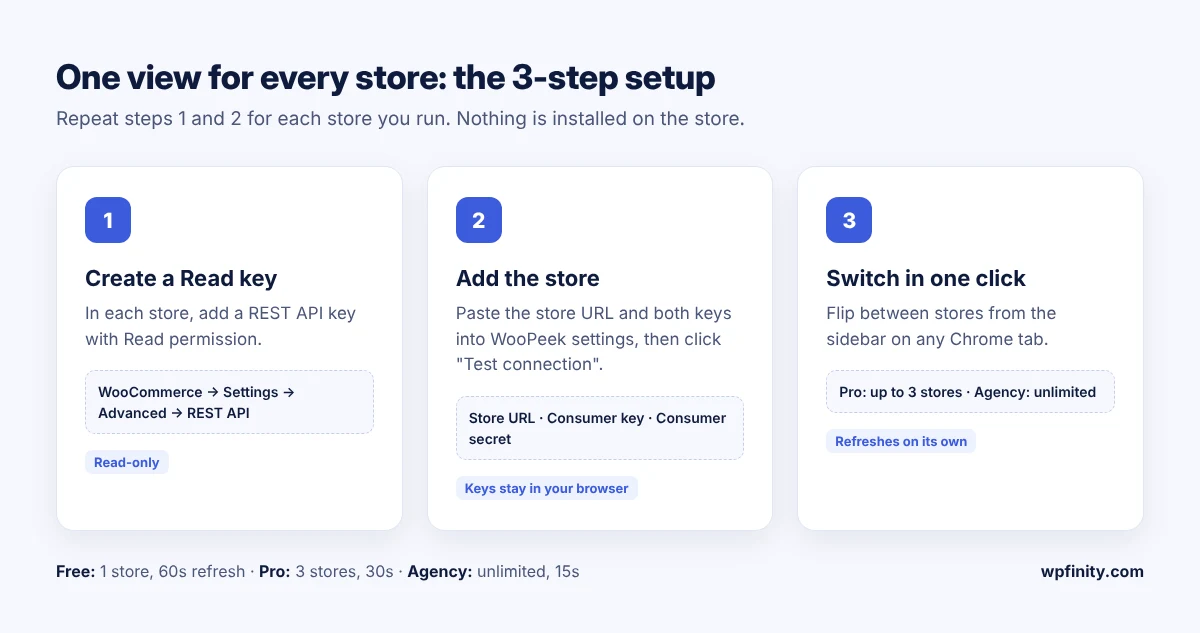
The sidebar then appears on every tab and refreshes on its own. On every plan you see today’s revenue and order count, pending and processing alerts, recent orders and new-order toasts with an optional sound. WooPeek Pro adds top products today, low stock watch, a 30-day revenue sparkline and desktop notifications when orders waiting for payment go up. Pro refreshes every 30 seconds; Agency every 15.
Start with your busiest store, free
WooPeek Free connects one store with no account: today’s revenue, pending and processing alerts, 5 recent orders and new-order toasts on every Chrome tab.
What does a multi-store morning look like with WooPeek Pro?
A multi-store check with WooPeek Pro takes under a minute, because you flip between stores instead of logging in to each one. Here is a realistic morning for an owner running three stores:
- 8:30, Store A (apparel): revenue already ticking, 3 orders waiting for payment. Follow up on the oldest one.
- 8:31, Store B (accessories): 22 orders in processing after an overnight email campaign. Hand packing to your fulfillment helper first thing.
- 8:32, Store C (home goods): low stock watch shows a best seller with 4 units left. Reorder before lunch.
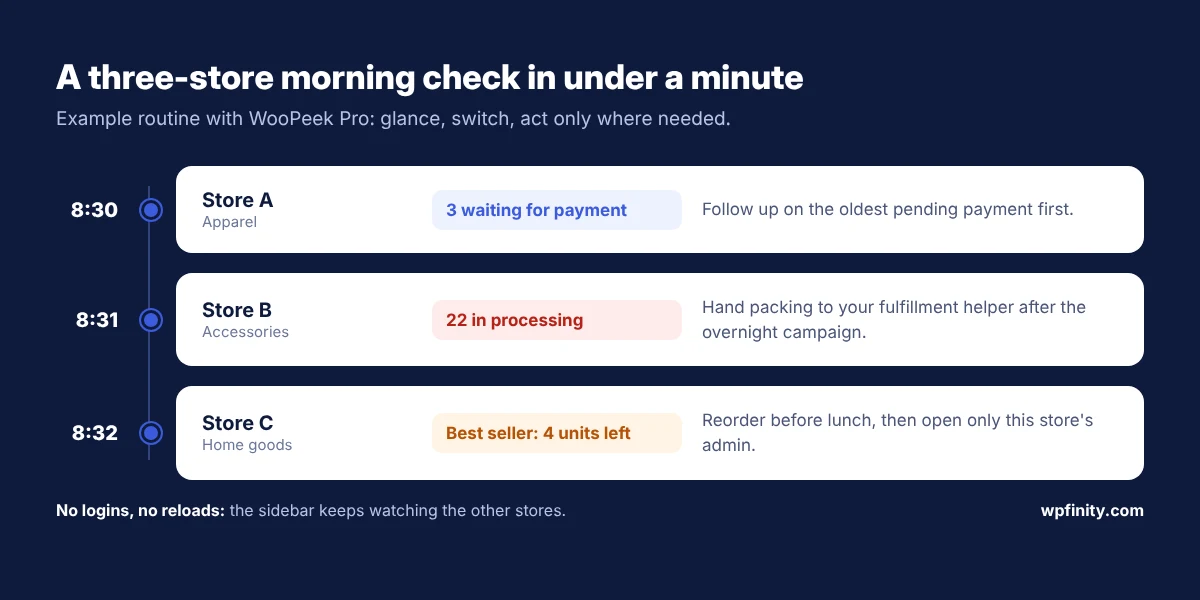
Then you close nothing and log in to nothing. You open only the admin that needs real work, and the sidebar keeps watching the other two.
Is it safe to connect several stores to one browser extension?
Connecting stores is low-risk when the tool needs only read access and keeps keys on your device. WooPeek is built that way:
- Read-only access: WooPeek only reads orders and products through the official WooCommerce REST API.
- Keys stay local: API keys are stored in Chrome and sent only to your own store, never to Wpfinity.
- No plugin: nothing to install, update or conflict on any store.
- No tracking: only the email you verify a plan with is checked by Wpfinity’s license server.
You can revoke a key from the same REST API screen in WooCommerce at any time.
Which WooPeek plan fits how many stores you run?
Pick the plan by store count and how fast you need to know. All plans include the 14-day, 100% money-back guarantee.
| Plan | Stores | Refresh | Price |
|---|---|---|---|
| Free | 1 | 60s | $0 forever, no account |
| Pro | Up to 3 | 30s | $39/year or $99 once |
| Agency | Unlimited | 15s | $99/year or $249 once |
Agency suits freelancers and agencies looking after client stores: unlimited stores, up to 30 recent orders, and nothing installed on the client’s site. Browse all Wpfinity products if you also need WordPress plugins.
Watch all your stores from one sidebar
WooPeek Pro adds the multi-store switcher, low stock watch and desktop notifications for up to 3 stores. Pay yearly or once, backed by a 14-day money-back guarantee.
FAQ
Can WooCommerce manage multiple stores from one dashboard?
Not by default. Each WooCommerce store has its own admin and orders. WordPress Multisite shares one install, and a monitoring tool like WooPeek Pro shows orders and revenue for several stores in one view.
Do I need WordPress Multisite to run several WooCommerce stores?
No. Separate installs work well, and WooCommerce suggests them when stores have different owners, workflows or extension stacks.
How many stores can WooPeek show?
WooPeek Free connects 1 store, WooPeek Pro up to 3 and WooPeek Agency unlimited stores, with a one-click switcher on Pro and Agency.
Does WooPeek need a plugin on each store?
No. WooPeek connects through the WooCommerce REST API built into every store, using a read-only API key you create in WooCommerce settings.
Can I use WooPeek for client stores?
Yes. The Agency plan covers unlimited stores, uses read-only keys and installs nothing on the client’s site.
Which browsers does WooPeek work in?
WooPeek is a Manifest V3 Chrome extension and needs Chrome 110 or newer.

 WooCommerce Tips
November 12, 2026
How to Monitor WooCommerce Orders on Black Friday
Monitor WooCommerce orders on Black Friday without living in wp-admin: track pending payments, the processing backlog and stock with a…
Read more
 Cleaning Business
November 12, 2026
How to Bid Commercial Cleaning Jobs: A Step-by-Step Guide
Learn how to bid commercial cleaning jobs step by step: walkthrough, production rates, labor, overhead and profit, plus a worked…
Read more
 Cleaning Business
November 10, 2026
How to Price Carpet Cleaning: Per Room vs Per Square Foot
Learn how to price carpet cleaning per room or per square foot, with 2026 US price benchmarks, job minimums and…
Read more
Get new articles & release notes in your inbox
Sign up for updates on our upcoming releases. No spam — unsubscribe anytime.